Image
Image is a JDance component for displaying photographs, illustrations, logos and other visual content. Like other JDance components, images can be sized, styled and connected to server-side actions directly from Java.
For the complete API reference, visit https://doc.jdance.org.
Overview
The simplest way to display an image is to provide its URL. This can be a relative path within your application or an external image URL.
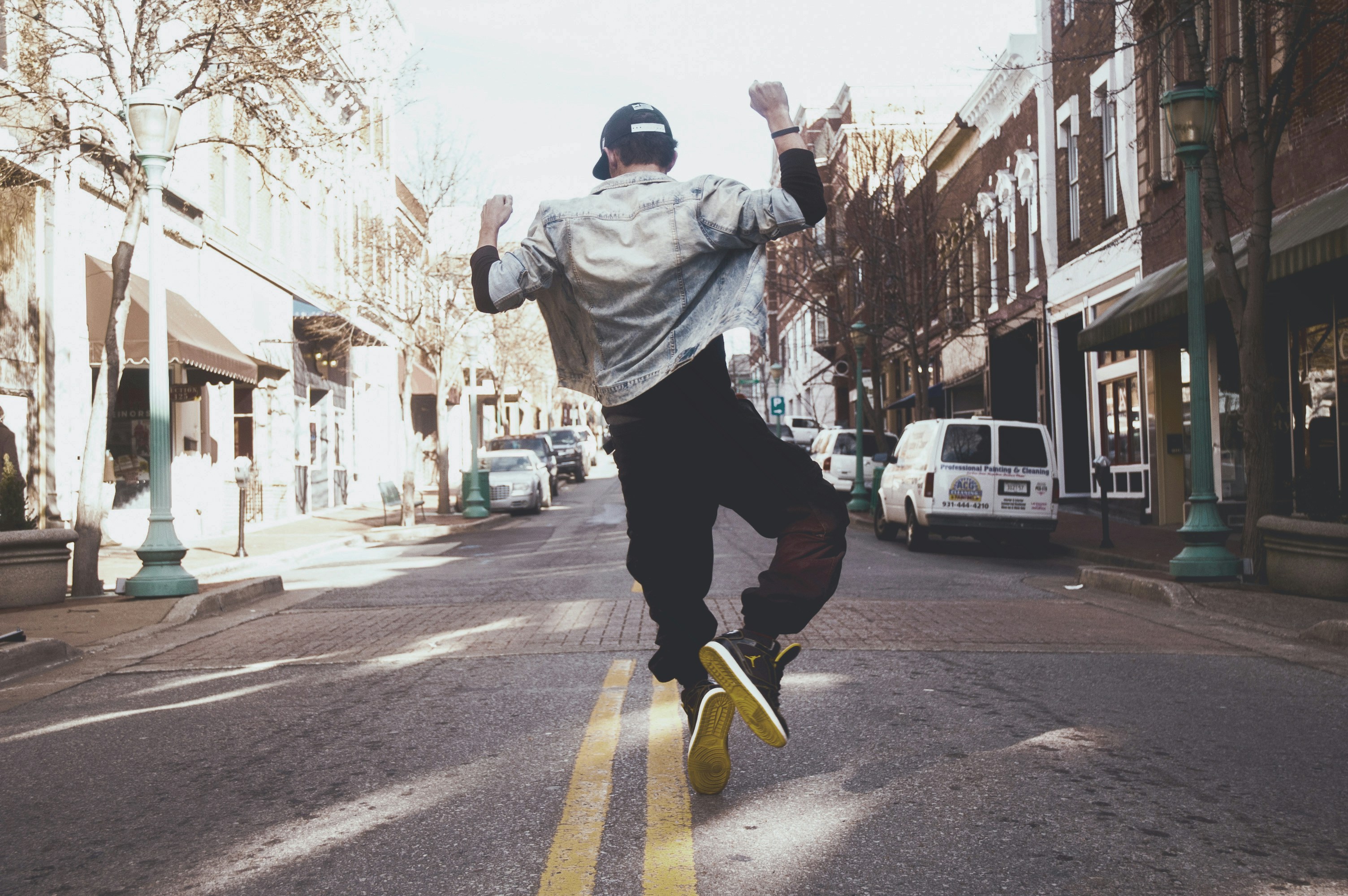
The example uses a relative width of 100%, allowing the image to fill the space available in its parent layout.
Images in a layout
Images work with BasicLayout just like Text, Button and other JDance components.
The following example displays two images next to each other, with each image occupying half of the available layout width.
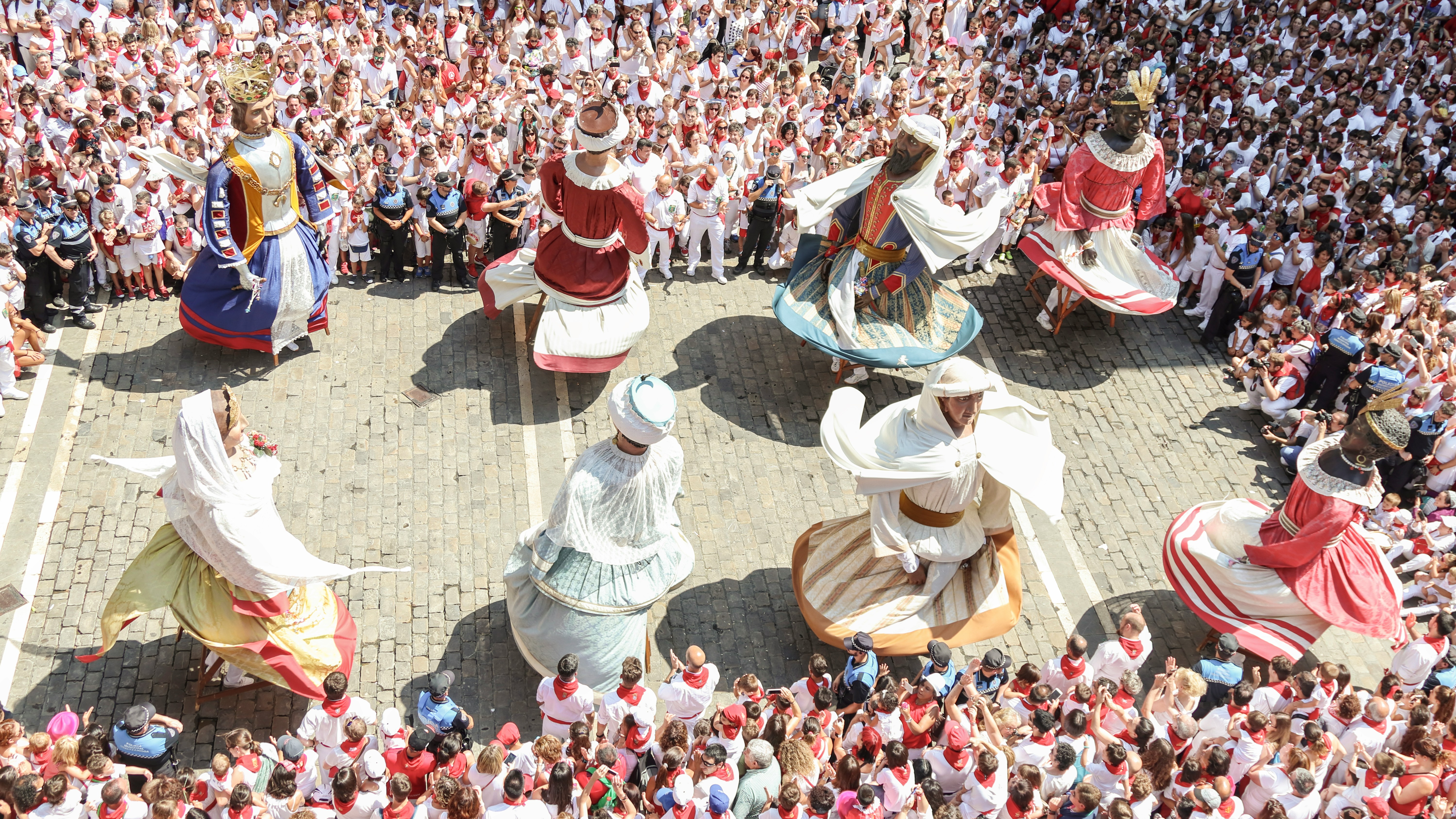
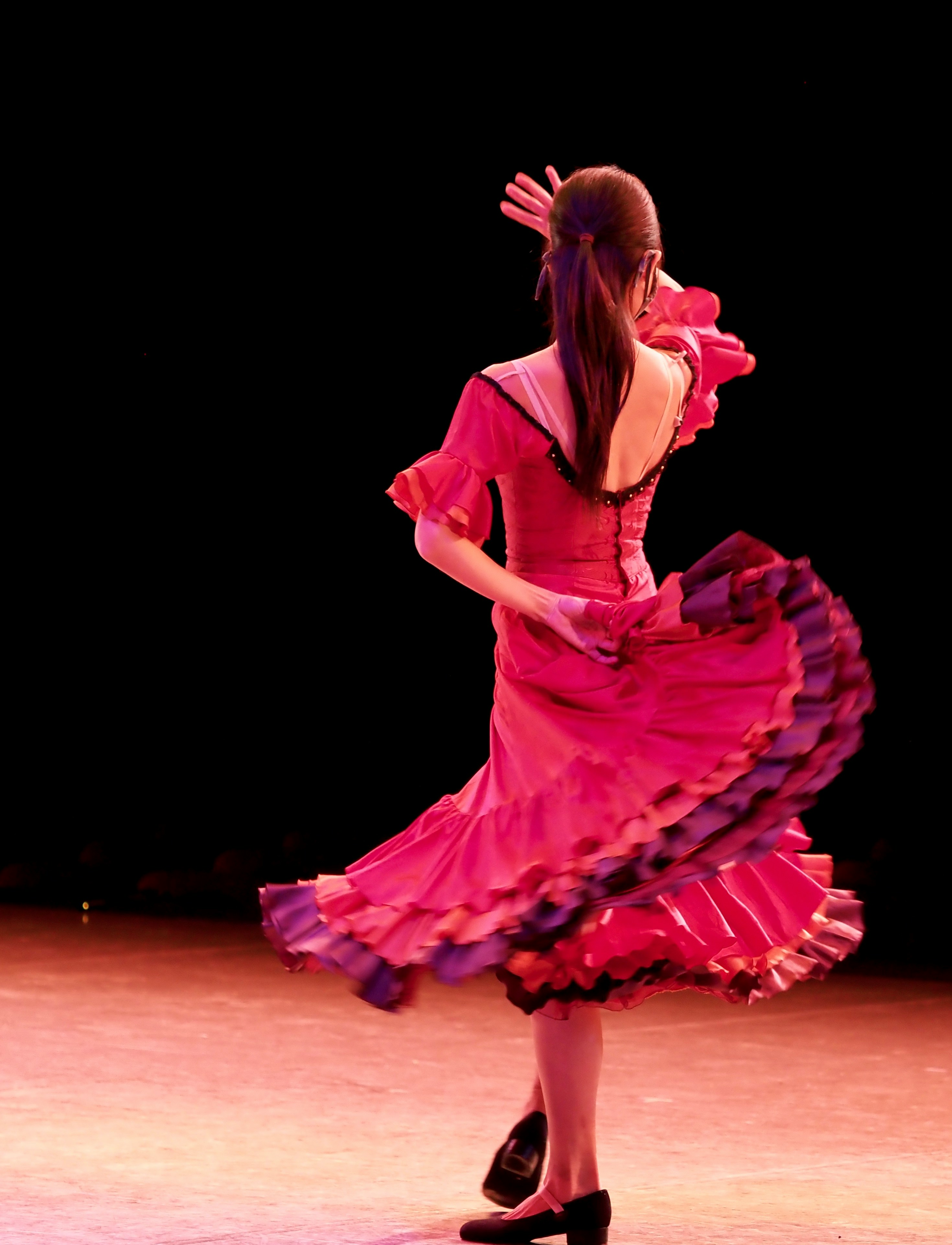
Notice that the image width and the layout cell width are independent. The layout decides how much space each image receives, while setRelativeWidth(100) makes the image fill that space.
Images with other components
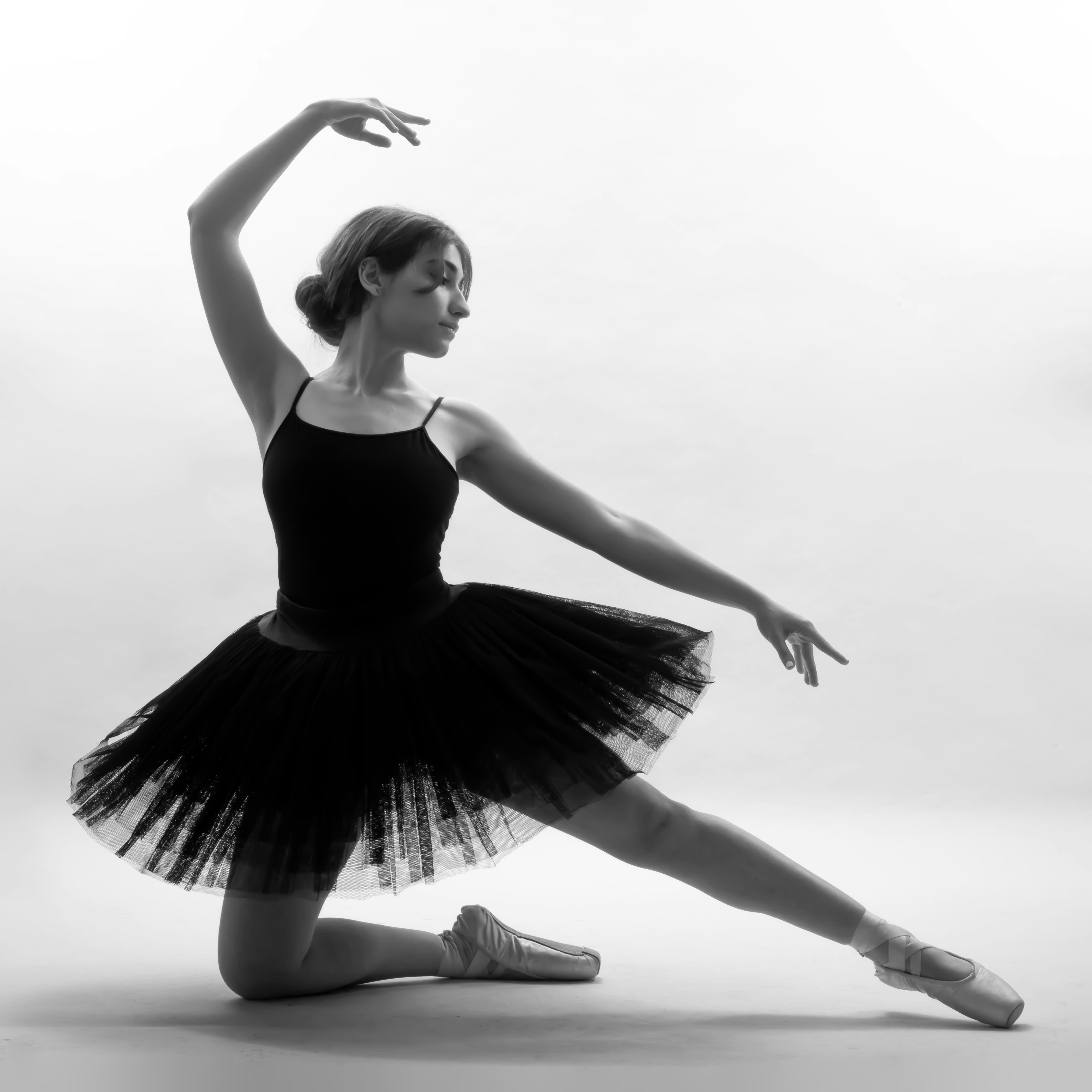
An Image can be combined with text, buttons and other elements to create cards, galleries and more complete interfaces.
Here we place an image and a caption inside a vertical layout.
Fixed and relative dimensions
Image supports both fixed dimensions in pixels and relative dimensions in percentages.
Use fixed dimensions when an image should have a predictable size, such as an icon or thumbnail. Relative dimensions are useful for responsive content.
Choose one width strategy for each image. Setting both a fixed and relative width is unnecessary and can produce conflicting CSS declarations.
You can also specify a fixed height using setHeight() or a relative height using setRelativeHeight().
Responsive images
Image supports Media rules for fixed width and height, making it possible to change an image's dimensions depending on the screen size.
For example, a thumbnail can be larger on desktop and smaller on mobile.
For fluid layouts, another common approach is to let BasicLayout handle responsive cell sizing and use setRelativeWidth(100) on the image itself.
Styling images
Images can have padding, borders and background colors using the same JDance styling concepts found elsewhere in the framework.
Padding creates space around the image content. A border can help separate an image from the surrounding interface.
For properties not covered by the component API, addExplicitStyle() can be used, although JDance's dedicated styling methods should generally be preferred.
Interactive images
An image does not have to be purely decorative. Image supports events such as onClick, onMouseOver and onMouseOut.
Like other JDance components, images can trigger server-side actions.
Here, ViewProductDetails represents an application-specific HttpAction. This is an illustrative example; your application must provide that action.
You can also use Location for navigation or JavaScript for custom browser behavior.
Tooltips
Use setTooltip() to provide a short description that appears when the user hovers over an image.
The tooltip is rendered as the HTML title attribute. It is not a replacement for accessible alternative text, which may require an additional attribute.
Practical guidance
Use relative widths when images should adapt to their containers. Let BasicLayout handle the arrangement of multiple images, and use Media rules when different screen sizes require different dimensions.
Avoid forcing both width and height unless you intentionally want a specific aspect ratio. Otherwise, let the browser preserve the image's original proportions.
Choose image sizes appropriate for their display area. A small thumbnail should not require downloading a very large image file.
For meaningful images, provide accessible alternative text. With the current Image API, this can be added through addExplicitAttribute("alt",...).
Full API reference
These examples cover the most common ways to work with Image in JDance. The full API reference includes constructors, dimension methods, styling, event handlers and inherited functionality.
Visit https://doc.jdance.org for the full reference.